Review the website you have open
Add the extension to Chrome or Edge. On any shop tab it reads that screen the way a store owner, a UI designer, and a front-end developer would, then tells you what to change. If a picture is the problem, it can make a new one.

-
 1
Download and unzip
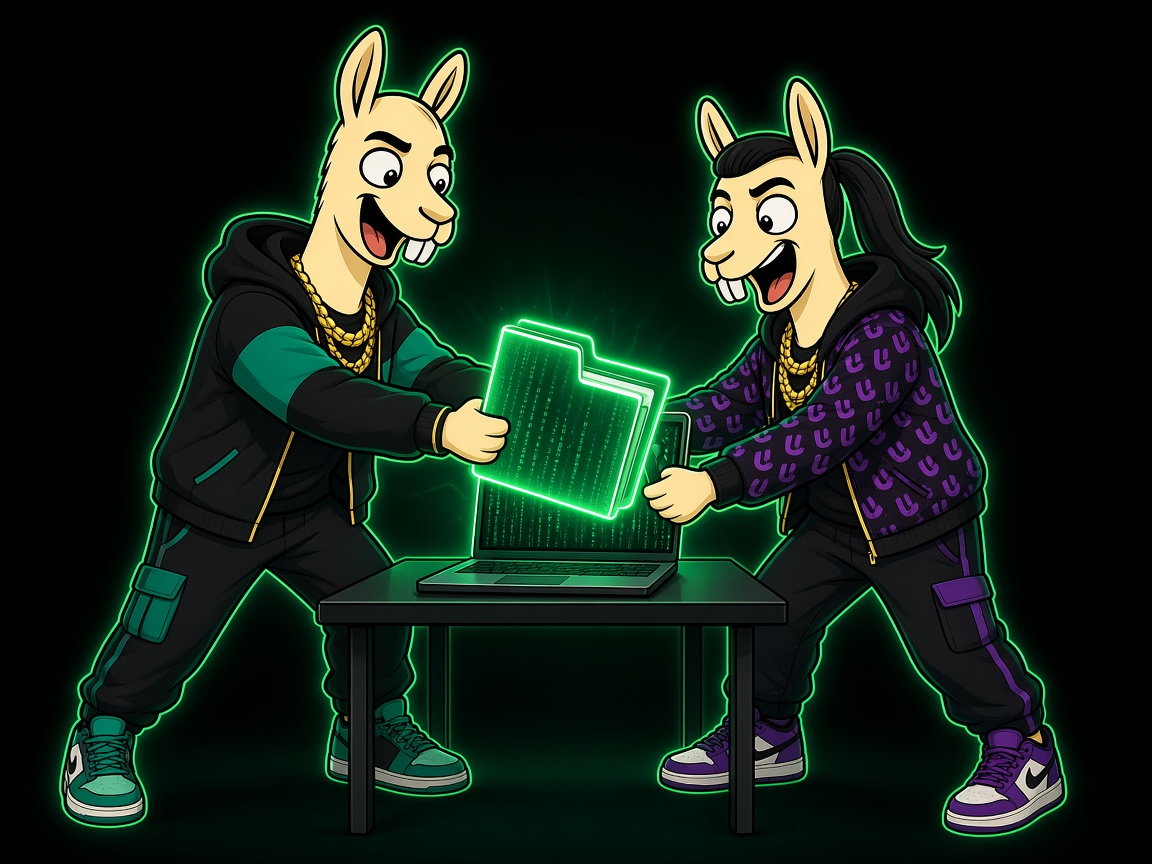
Stay on this page, download the file, and unzip it. You get a folder named neurollamas-page-review.
-
 2
Install in Chrome or Edge
- Chrome: open chrome://extensions. Edge: open edge://extensions
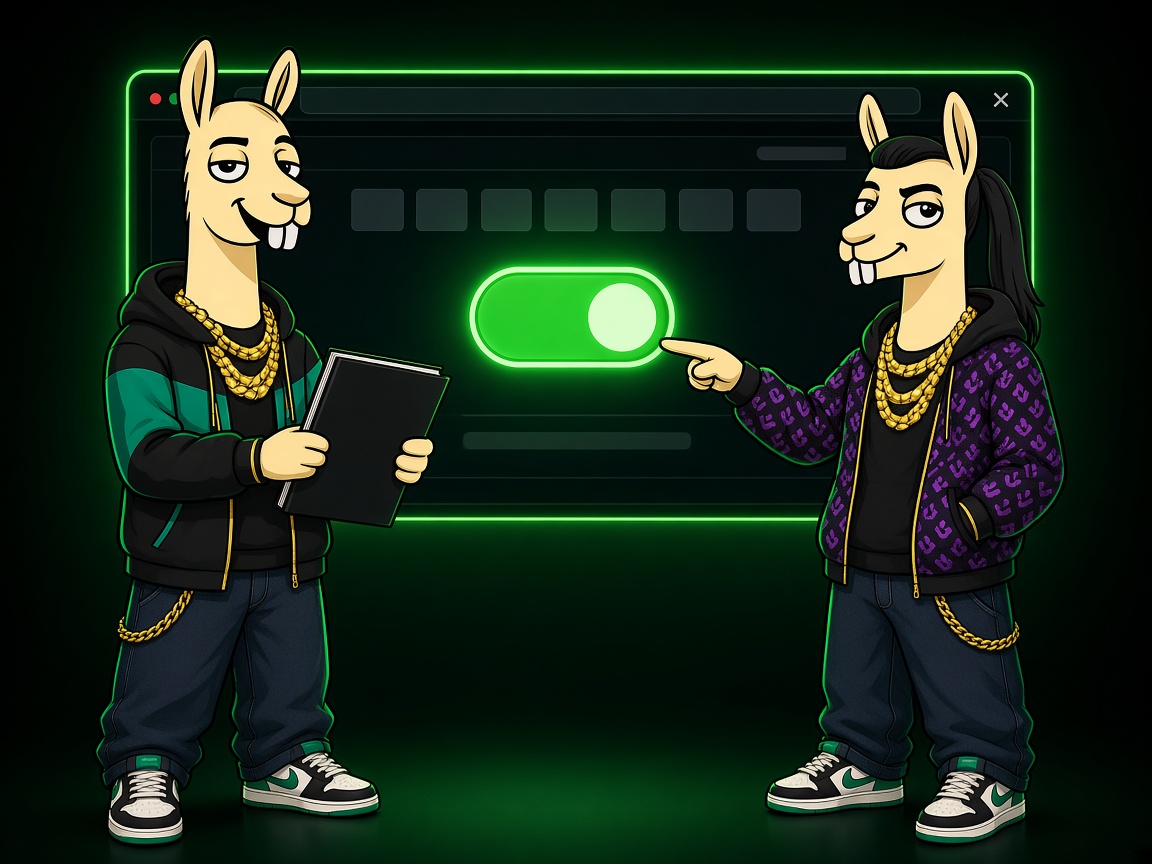
- Turn on Developer mode
- Click Load unpacked and choose the folder that contains manifest.json
- Do not use Pack extension, and do not pick only the icons folder
-
 3
Connect this account
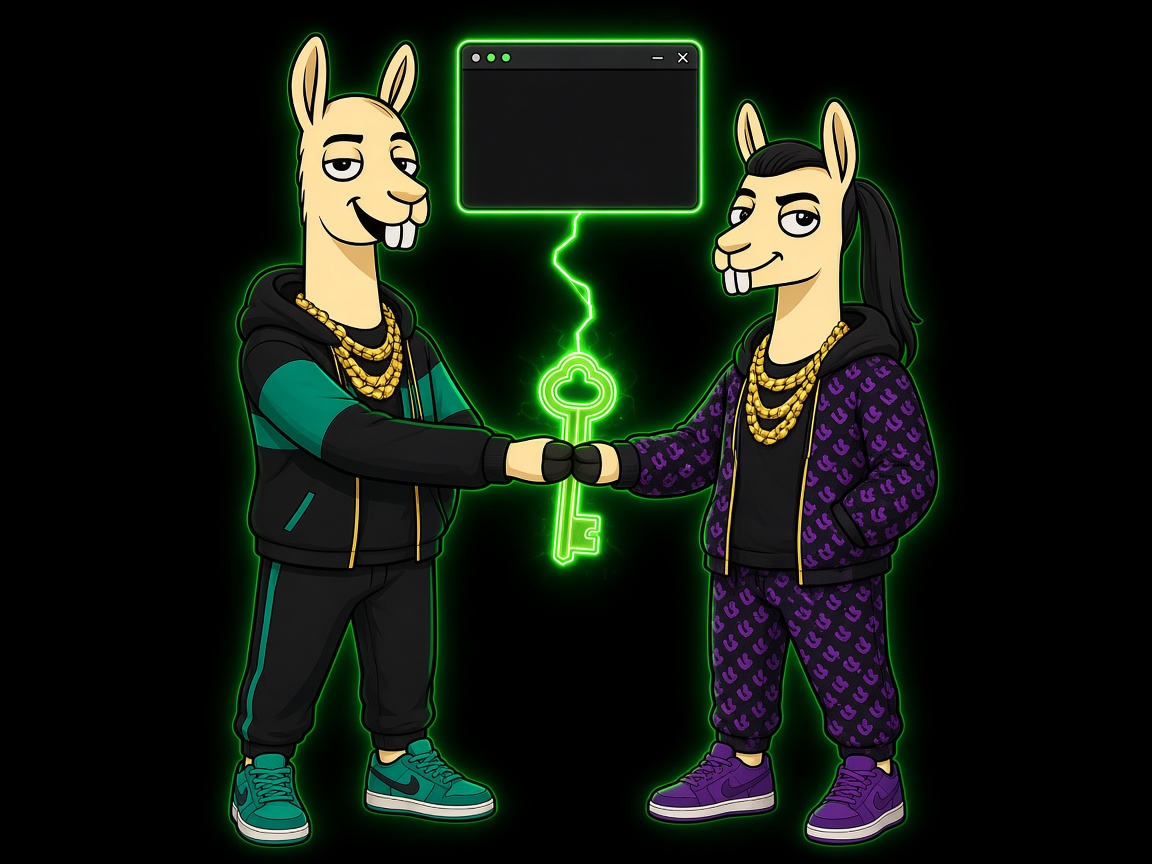
Come back here and press Connect. The extension picks up the key. If it does not, paste the key shown once into the extension.
Log in -
 4
Open the panel on a page
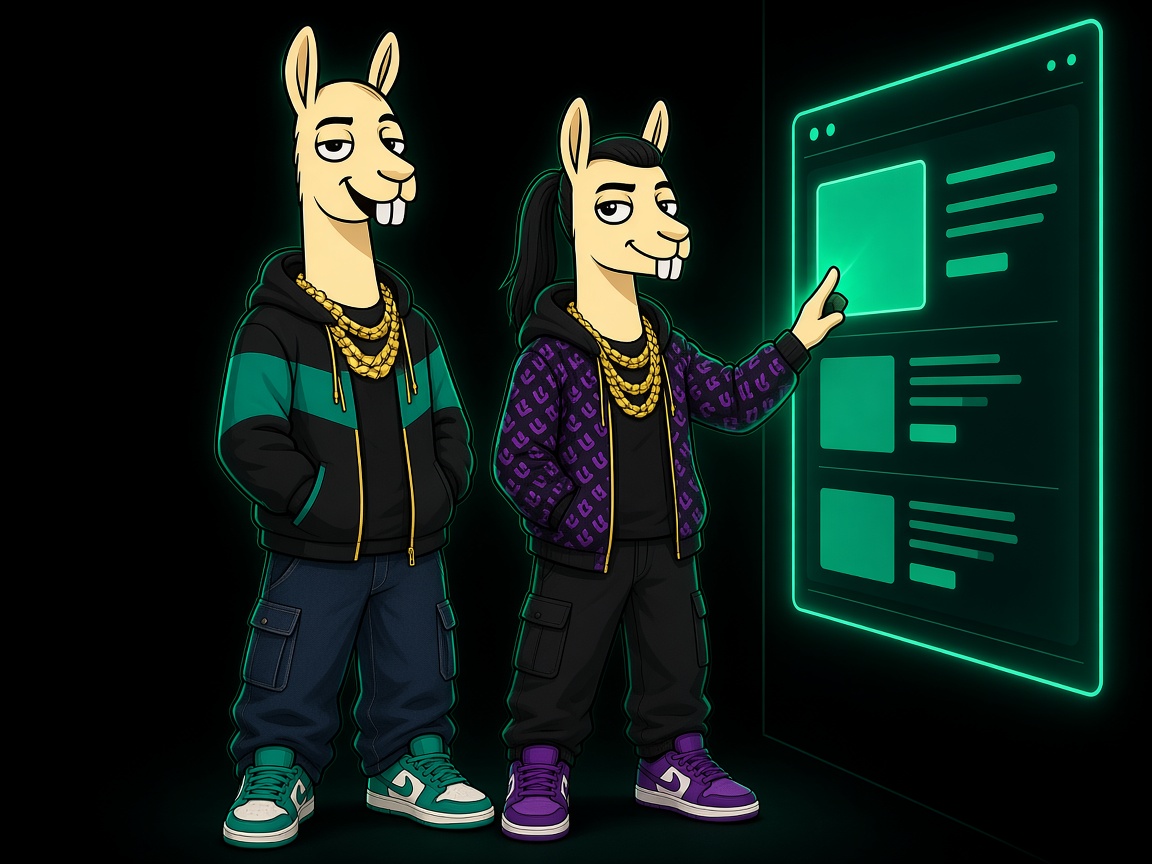
Open the shop or product page. Click the Neurollamas icon. The panel opens beside that page. It does not read other tabs, and it does not read what you type into forms.
-
 5
Review, then a new picture
Press Review this page. The first two are free. If a picture is the problem, press Make a new image. Each review and each new picture uses one prompt.
Buy 30 prompts
Already installed? After this update, press Reload on the browser’s extensions page so the Neurollamas logo shows up.